The useful takeaway
Calculate the figures with ordinary software, preserve the inputs, and let AI draft only the commentary a person can verify.
The weekly report often starts with the same scramble: open a spreadsheet, copy figures, compare last week, and write a few sentences about what changed. The writing can be quick while the checking takes most of the time. A useful automation makes the figures traceable and missing information obvious before it produces a polished summary.
This is a proposed workflow for a small service business, not a client case study or a description of a deployed PraoAI system. The examples and numbers are hypothetical. Start with one spreadsheet and one internal report. You need a source owner, permission to read the selected data, a scheduler, a place to retain each report version, and a reviewer who knows what the figures mean.
1. Define the report before scheduling it
Choose a few operational measures: requests received during the week, requests completed during the week, and the number still open at the end of the period. Define which timestamp and status count for each. A request received in an earlier week can be completed this week, so the two weekly counts need not match. Record exclusions such as test records and cancelled requests.
Give the reporting period an explicit timezone and use a start-inclusive, end-exclusive interval. For example, a report prepared on Monday could cover the preceding Monday at 00:00 through the current Monday at 00:00 in the business timezone. This handles midnight records consistently. For an end-of-week open count, retain status history or a genuine period-end snapshot; today's status column cannot reliably reconstruct last week's queue.
n8n's Schedule Trigger documentation says scheduled workflows must be saved and published. Timing uses the workflow timezone when set, otherwise the instance timezone. Set that choice explicitly and test it around daylight-saving changes instead of assuming the server clock matches your business.[1]
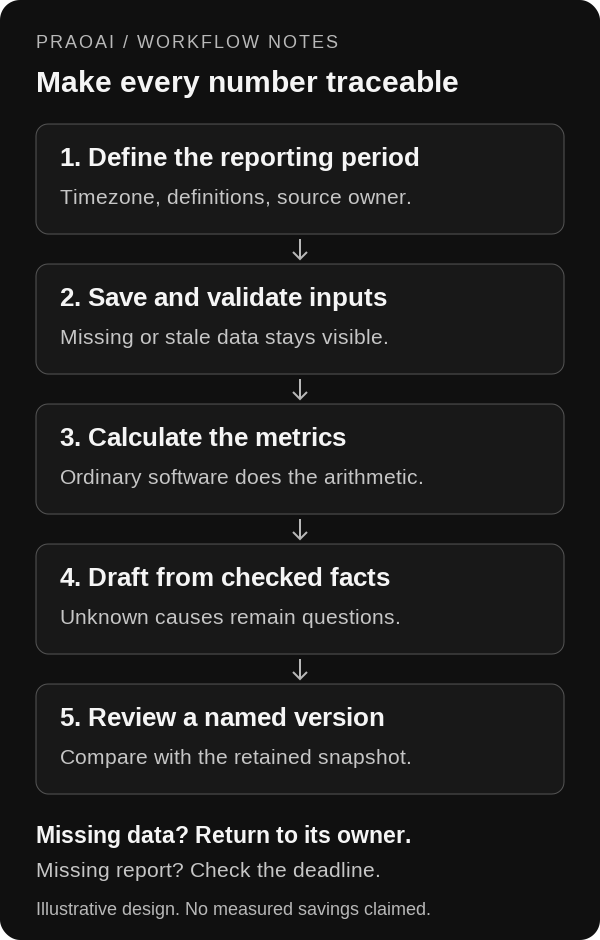
2. Capture the source and check its shape
Read the required ranges into a saved input snapshot with a retrieval time, source link and report-period identifier. Keep access limited to the fields needed. An operations summary usually does not need customer messages, personal contact details or attachments. A retained snapshot makes a later discrepancy easier to investigate without relying on a live spreadsheet that has changed.
The Google Sheets API can retrieve several ranges from one spreadsheet with spreadsheets.values.batchGet. Its response preserves the order of requested ranges, and value-render options control how values are returned. Explicitly choose how your integration handles numbers and dates rather than parsing whatever formatted strings happen to appear. This API feature is a way to read ranges, not a promise that several different systems form one synchronized snapshot.[2]
Check expected column names, required identifiers, valid timestamps and duplicate IDs before calculating. Ask the source owner how to establish freshness: retrieval succeeded does not mean staff updated the underlying records. If a required field is missing or the source has not been confirmed current, mark the report incomplete and identify the affected measure. A blank value should not silently become zero.
3. Calculate first, then draft the explanation
Use formulas or ordinary code for totals and comparisons. Give the language model the resulting metrics, period labels, approved definitions and explicit data-quality flags. Ask it to describe only those supplied facts and leave unverified causes as questions. Do not let free-text cells instruct it to change its task or contact anyone.
Nothing in these figures establishes why demand changed or whether performance improved. The workflow should not blame staffing, credit a campaign or infer backlog growth without supporting evidence. When a previous value is zero, show the absolute difference and mark percentage change unavailable rather than dividing by zero. Keep missing measures out of any claim that the report is complete.
An illustrative review card might contain:
- Period: the agreed prior business week. Source: retained input snapshot.
- Requests received: 24; previous week: 20; difference: 4, or 20%.
- Requests completed: 18; previous week: 18; difference: 0.
- Open at period end: unavailable; no historical status snapshot was supplied.
- Draft commentary: Requests received increased from 20 to 24. Completions were unchanged at 18. The period-end backlog could not be verified.
- Question for the reviewer: Is there confirmed context for the increase in incoming requests?
4. Review a specific version
Show the reviewer the metrics, source links, completeness flags and commentary together. The reviewer checks a small sample against the snapshot, confirms definitions, and either approves the version, adds sourced context or returns it for correction. Save the final text and approval with that version. A later source correction should produce a new version with a visible explanation.
For the first pilot, the reviewer distributes the report through the existing internal channel. The drafting step does not need sending permissions. Use the reporting period as a stable identity so a retried job updates an unfinished draft instead of creating several apparently final reports. Keep failed and superseded versions distinguishable from the approved one.
5. Plan for missing runs as well as failed runs
In n8n, an error workflow is selected in workflow settings and starts with Error Trigger. The Stop And Error node can deliberately fail an execution when a required condition is not met. That lets a missing required column become an explicit exception rather than misleading output.[3]
Execution alerts are only one check. Add a separate check for whether the expected report exists by its deadline; a scheduler that never started may not produce the failure record you expect. Name an owner and backup for missing reports. Retry temporary read failures a limited number of times, retain the last error, and keep a manual reporting path. A failed model call can still leave a useful table of checked figures for someone to explain.
6. Measure whether the whole report became easier
Pilot with synthetic inputs, then approved historical examples with known answers. Include duplicate rows, missing columns, a changed timezone, a zero baseline and a late correction. Compare calculated values and completeness labels with the expected result before testing narrative quality.
Measure total preparation and review minutes, corrected figures, unsupported statements, missed deadlines and recovery effort. Include workflow hosting, model usage, integration setup and ongoing maintenance in the cost. Continue only if the report is easier to verify and the total effort justifies running it. PraoAI Labs can help scope that first reporting workflow around one source and a clear acceptance test.
Sources & further reading
Sources reviewed November 16, 2026. Examples and recommendations are PraoAI Labs’ analysis; capabilities and services may change.
- Schedule Triggern8n documentation
- Method: spreadsheets.values.batchGetGoogle Sheets API
- Handle errors gracefullyn8n documentation
- Five everyday workflows worth automating firstPraoAI Insights
- Turn website enquiries into a reliable follow-up queuePraoAI Insights
Put the idea to work.
We can help turn a workflow or product idea into a clear scope and a useful first version.
Explore workflow & systems integration